DayPilot
| Demo | |
|---|---|
| Downloads | |
| Languages | JavaScript |
| Technologies | ReactJSX |
Overview
This tutorial explores different ways of displaying event details in the React Scheduler component.
- The built-in Bubble component displays a callout on hover.
- You can define the Bubble content using HTML, a JSX component, or details loaded from the server using an HTTP request.
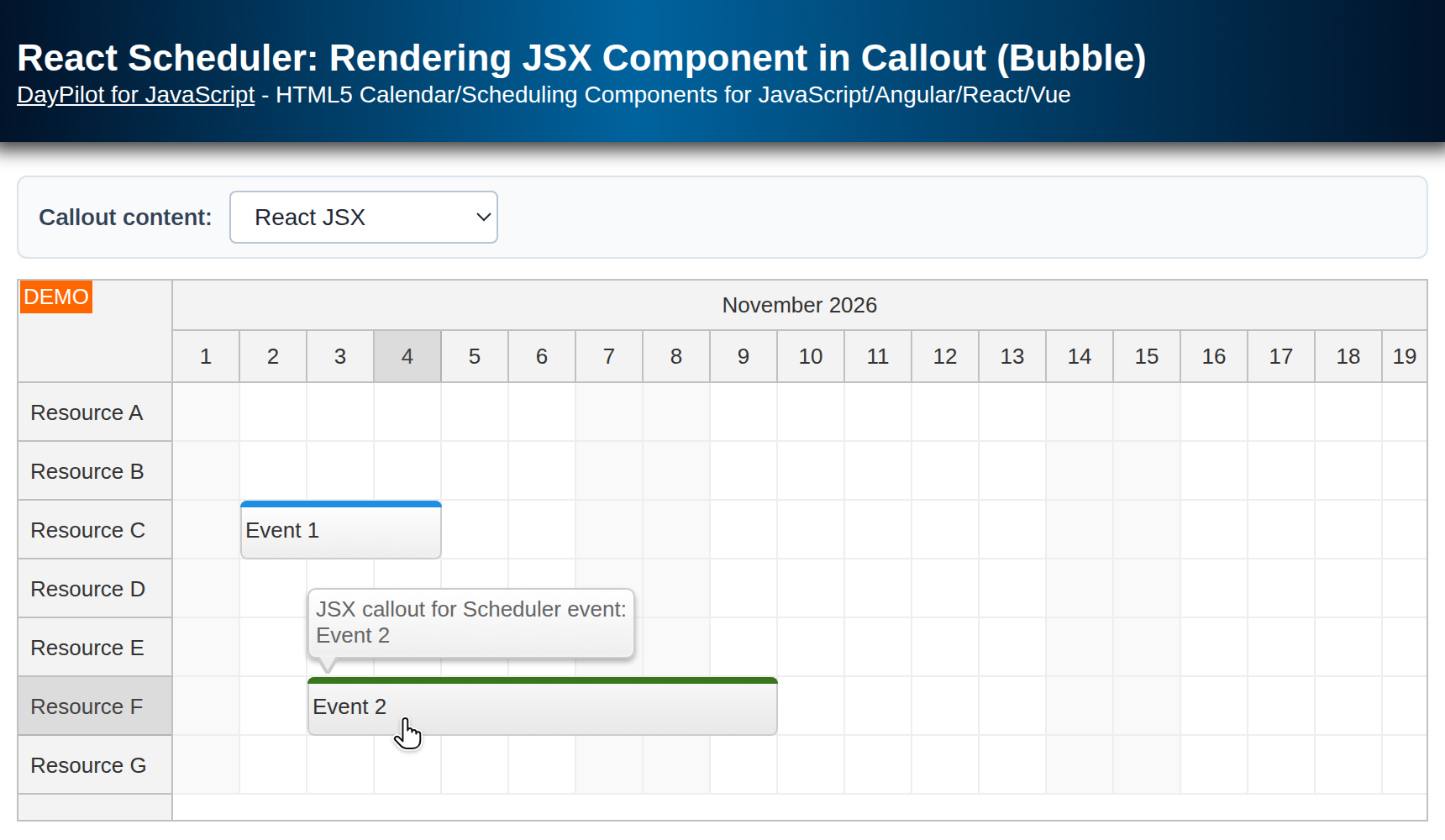
The sample uses React function components and hooks. Use the Callout content selector to try Static HTML, Dynamic HTML, Server HTML, and React JSX. Hover over an event to see its callout; clicking an event also opens it. React JSX is selected initially.
See also the React Scheduler Component Tutorial which shows how to start using the React Scheduler component in your application.
License
Licensed for testing and evaluation purposes. Please see the license agreement included in the sample project. You can use the source code of the tutorial if you are a licensed user of DayPilot Pro for JavaScript.
Static Callout Content Defined as HTML
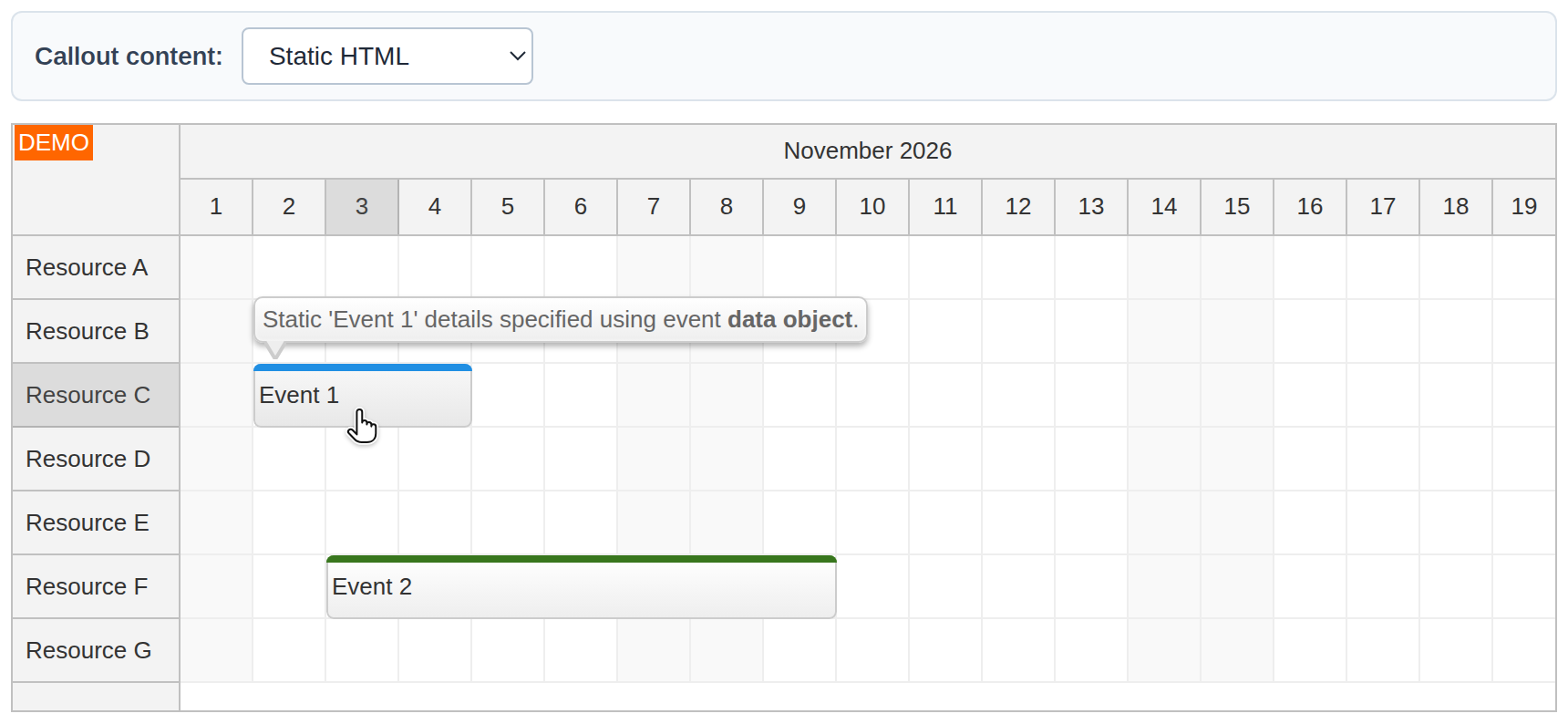
The easiest approach is to define the callout content using the bubbleHtml property of the event data object. The bubble object uses this value to display the callout on hover.
Select Static HTML and hover over Event 1. Its details include a bold phrase defined directly in the event data. Event 2 has no bubbleHtml, so it has no static callout. The events are stored in React state:
const [events, setEvents] = useState([
  {
    id: 1,
    text: "Event 1",
    start: "2026-11-02T00:00:00",
    end: "2026-11-05T00:00:00",
    resource: "C",
    bubbleHtml: "Static 'Event 1' details specified using event <b>data object</b>."
  },
  // ...
]);
The static mode creates a Bubble without a content handler. In src/scheduler/Scheduler.jsx, the selected mode controls the memoized Bubble, and the Scheduler receives it through the bubble prop. The excerpt below shows that connection; the omitted branches handle the other modes.
import {useMemo, useState} from "react";
import {DayPilot, DayPilotScheduler} from "daypilot-pro-react";

// ...

export default function Scheduler() {
  const [mode, setMode] = useState("jsx");
  // ...

  const bubble = useMemo(() => {
    if (mode === "static") {
      return new DayPilot.Bubble();
    }
    // ...
  }, [mode]);

  // ...

  return (
    <div>
      ...
      <DayPilotScheduler
        // ...
        bubble={bubble}
        eventHoverHandling={"Bubble"}
        eventClickHandling={"Bubble"}
        // ...
      />
    </div>
  );
}
Dynamic Callout Loaded from the Server Side
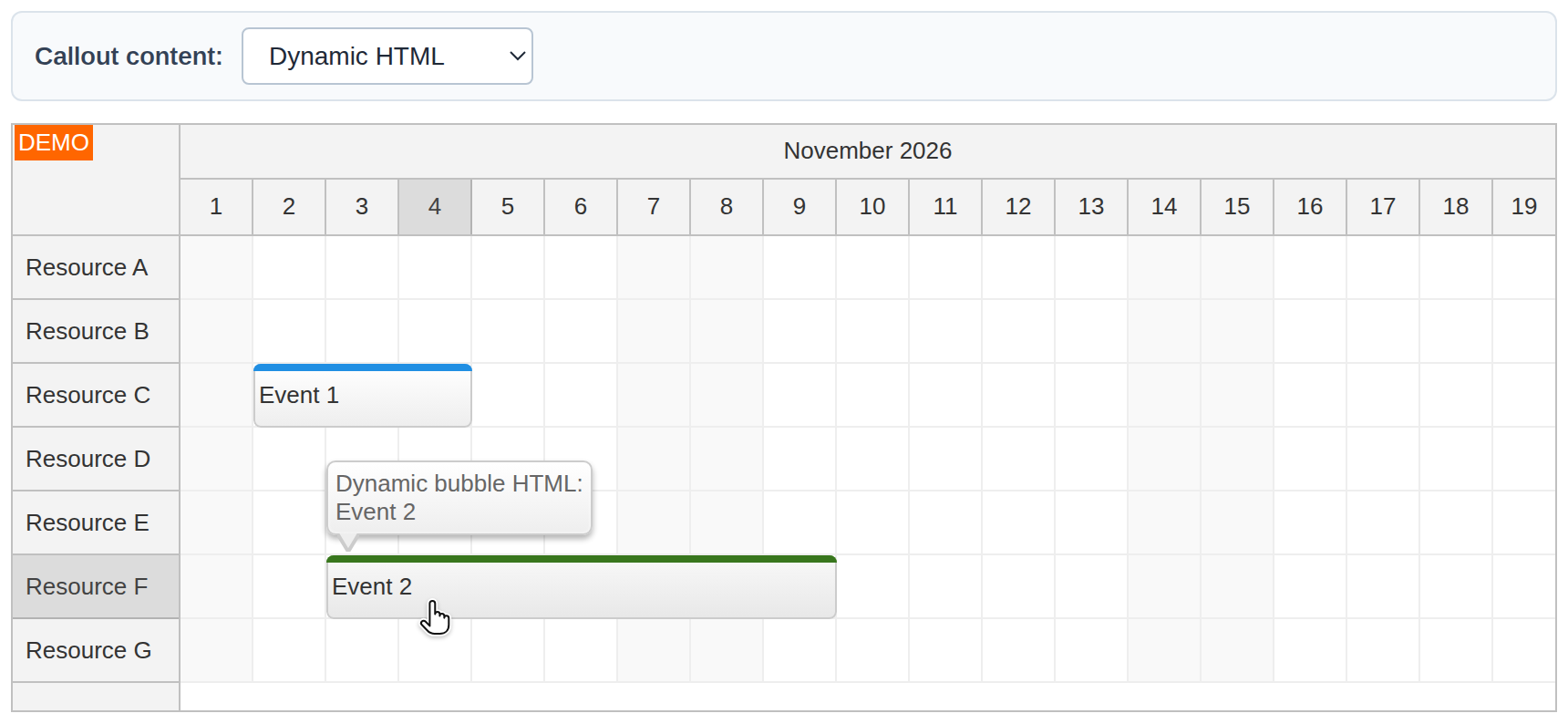
The bubble content can also be defined dynamically using the DayPilot.Bubble.onLoad event handler. This is useful when the HTML can be generated from event data on the client side: the server does not need to send a separate bubbleHtml value for every event.
Select Dynamic HTML and hover over Event 2. The handler reads the event from args.source and sets args.html when the callout is activated. Escape the event text before inserting it into an HTML string. Here is the dynamic branch inside the same memoized Bubble factory and its connection to the Scheduler:
import {useMemo, useState} from "react";
import {DayPilot, DayPilotScheduler} from "daypilot-pro-react";

// ...

export default function Scheduler() {
  const [mode, setMode] = useState("jsx");
  // ...

  const bubble = useMemo(() => {
    // ...
    if (mode === "dynamic") {
      return new DayPilot.Bubble({
        onLoad: (args) => {
          const event = args.source;
          args.html = "Dynamic bubble HTML:<br/>" + DayPilot.Util.escapeHtml(event.data.text);
        }
      });
    }
    // ...
  }, [mode]);

  // ...

  return (
    <div>
      ...
      <DayPilotScheduler
        // ...
        bubble={bubble}
        eventHoverHandling={"Bubble"}
        eventClickHandling={"Bubble"}
        // ...
      />
    </div>
  );
}
When onLoad is defined, it also runs for events that have bubbleHtml; that value is available initially as args.html. This sample replaces it. To keep static content and generate only missing details, return early from the handler when args.html already has a value.
In some cases, you might want to load additional data from the server side. Switch the loading to asynchronous mode by setting args.async = true before awaiting the request. Otherwise, the Bubble would finish loading as soon as the handler returns its promise.
As soon as the data is available, set args.html and call args.loaded() to notify the Bubble that the content is ready. This sample uses DayPilot.Http.get() to retrieve a JSON object with an html property.
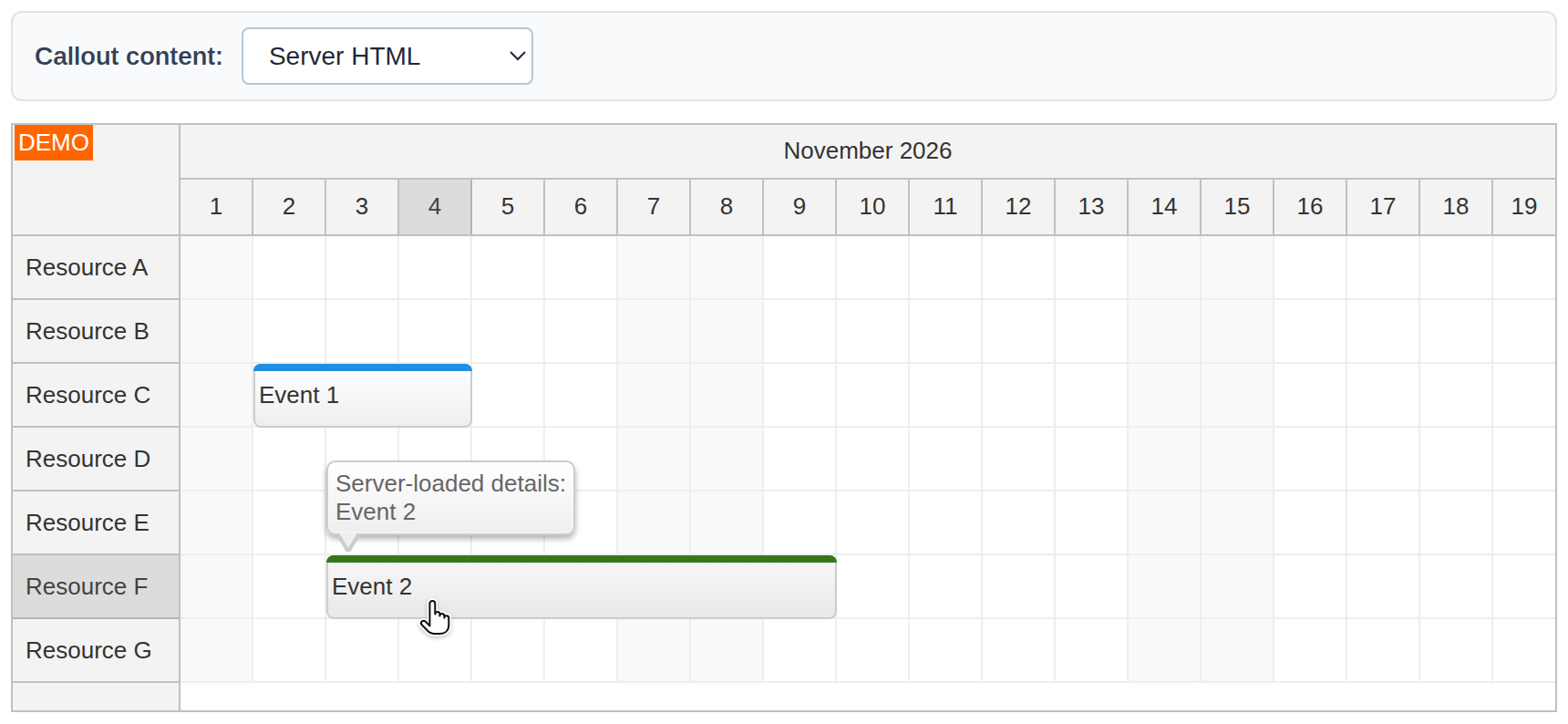
Select Server HTML and hover over Event 2 to make the request. The download includes static JSON responses in public/bubble/, served by Vite during development and copied into the production build. It does not include a database backend. In your application, replace the URL with an endpoint that looks up details by event ID and returns the same response shape. For Event 2, /bubble/2.json serves public/bubble/2.json, which contains {"html":"Server-loaded details:<br/>Event 2"}.
In src/scheduler/Scheduler.jsx, the Server HTML branch creates the asynchronous Bubble and passes it to the Scheduler. This excerpt includes the request, response assignment, error handling and completion notification:
import {useMemo, useState} from "react";
import {DayPilot, DayPilotScheduler} from "daypilot-pro-react";

// ...

export default function Scheduler() {
  const [mode, setMode] = useState("jsx");
  // ...

  const bubble = useMemo(() => {
    // ...
    if (mode === "server") {
      return new DayPilot.Bubble({
        onLoad: async (args) => {
          args.async = true;
          try {
            const {data} = await DayPilot.Http.get(`/bubble/${args.source.data.id}.json`);
            args.html = data.html;
          } catch {
            args.html = "Unable to load event details.";
          } finally {
            args.loaded();
          }
        }
      });
    }
    // ...
  }, [mode]);

  // ...

  return (
    <div>
      ...
      <DayPilotScheduler
        // ...
        bubble={bubble}
        eventHoverHandling={"Bubble"}
        eventClickHandling={"Bubble"}
        // ...
      />
    </div>
  );
}
The catch block supplies a readable fallback if the request fails. Calling args.loaded() in finally completes loading on both success and failure. Only use trusted or sanitized HTML in bubbleHtml and server responses.
Callout Defined using React JSX Component
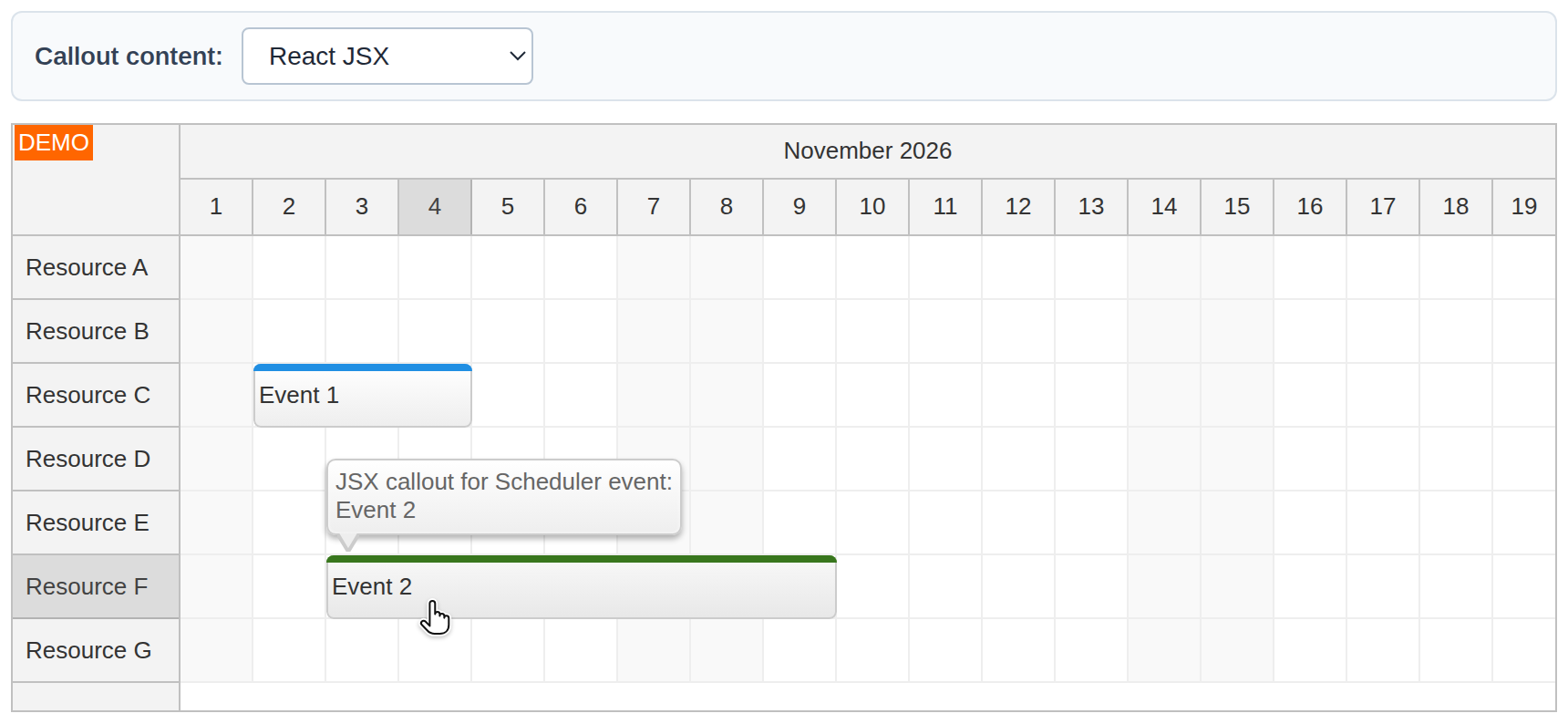
It may be inconvenient to create the bubble content by manually building an HTML string. The callout content can instead be defined using React JSX. This lets you put the markup in a component and pass the Scheduler event as a prop. React escapes interpolated event text automatically.
Define a small component for the details:
function EventDetails({event}) {
  return <div>JSX callout for Scheduler event:<br/>{event.data.text}</div>;
}
In the Bubble onDomAdd handler, assign the JSX to args.element. The DayPilot React integration renders that element inside the callout. Older examples use the onBeforeDomAdd alias; the current typed API uses onDomAdd.
return new DayPilot.Bubble({
  onDomAdd: (args) => {
    args.element = <EventDetails event={args.source}/>;
  }
});
Select React JSX and hover over either event. The JSX element replaces the HTML content, including the static bubbleHtml on Event 1. You do not need to convert the component to an HTML string or create a React root yourself.
The sample memoizes the Bubble with useMemo, creating a new one only when the selected mode changes. Omitting position uses the default "Above" mode. In JSX mode, the stylesheet reserves two lines of content height so the Bubble can measure its position before React renders the component. The Scheduler has both hover and click handling set to "Bubble".
Complete React Scheduler Component
The complete src/scheduler/Scheduler.jsx component combines the four alternatives. Event data stays in React state. The move and resize callbacks copy the changed event back into that state, so switching callout modes keeps those changes for the current page session. Reloading the page restores the sample data.
import {useMemo, useState} from "react";
import {DayPilot, DayPilotScheduler} from "daypilot-pro-react";

const resources = [
  {name: "Resource A", id: "A"},
  {name: "Resource B", id: "B"},
  {name: "Resource C", id: "C"},
  {name: "Resource D", id: "D"},
  {name: "Resource E", id: "E"},
  {name: "Resource F", id: "F"},
  {name: "Resource G", id: "G"}
];

function EventDetails({event}) {
  return <div>JSX callout for Scheduler event:<br/>{event.data.text}</div>;
}

export default function Scheduler() {
  const [mode, setMode] = useState("jsx");
  const [events, setEvents] = useState([
    {
      id: 1,
      text: "Event 1",
      start: "2026-11-02T00:00:00",
      end: "2026-11-05T00:00:00",
      resource: "C",
      bubbleHtml: "Static 'Event 1' details specified using event <b>data object</b>."
    },
    {
      id: 2,
      text: "Event 2",
      start: "2026-11-03T00:00:00",
      end: "2026-11-10T00:00:00",
      resource: "F",
      barColor: "#38761d",
      barBackColor: "#93c47d"
    }
  ]);

  const bubble = useMemo(() => {
    if (mode === "static") {
      return new DayPilot.Bubble();
    }
    if (mode === "dynamic") {
      return new DayPilot.Bubble({
        onLoad: (args) => {
          const event = args.source;
          args.html = "Dynamic bubble HTML:<br/>" + DayPilot.Util.escapeHtml(event.data.text);
        }
      });
    }
    if (mode === "server") {
      return new DayPilot.Bubble({
        onLoad: async (args) => {
          args.async = true;
          try {
            const {data} = await DayPilot.Http.get(`/bubble/${args.source.data.id}.json`);
            args.html = data.html;
          } catch {
            args.html = "Unable to load event details.";
          } finally {
            args.loaded();
          }
        }
      });
    }
    return new DayPilot.Bubble({
      onDomAdd: (args) => {
        args.element = <EventDetails event={args.source}/>;
      }
    });
  }, [mode]);

  const rememberEvent = (args) => {
    const updated = {...args.e.data};
    setEvents(previous => previous.map(event => event.id === updated.id ? updated : event));
  };

  return (
    <div>
      <div className="toolbar">
        <label htmlFor="bubble-mode">Callout content: </label>
        <select id="bubble-mode" value={mode} onChange={event => setMode(event.target.value)}>
          <option value="static">Static HTML</option>
          <option value="dynamic">Dynamic HTML</option>
          <option value="server">Server HTML</option>
          <option value="jsx">React JSX</option>
        </select>
      </div>
      <DayPilotScheduler
        startDate={"2026-11-01"}
        days={30}
        scale={"Day"}
        timeHeaders={[{groupBy: "Month"}, {groupBy: "Day", format: "d"}]}
        resources={resources}
        events={events}
        bubble={bubble}
        eventHoverHandling={"Bubble"}
        eventClickHandling={"Bubble"}
        onEventMoved={rememberEvent}
        onEventResized={rememberEvent}
      />
    </div>
  );
}
Running the Sample
Install dependencies with npm install and start the Vite development server with npm run dev. Use npm run build to create a production build. The sample includes the DayPilot Pro trial package.